What is an autorun.inf file and what does AutoRun Wizard put in it?
autorun.inf is a small text file at the root of a CD, DVD or USB drive. Windows reads it when the media is inserted to decide what program to offer, which icon to show for the drive, and what to call the drive in File Explorer. It is a Windows feature; AutoRun Wizard writes the file for you so you never have to edit it by hand.
What the file looks like
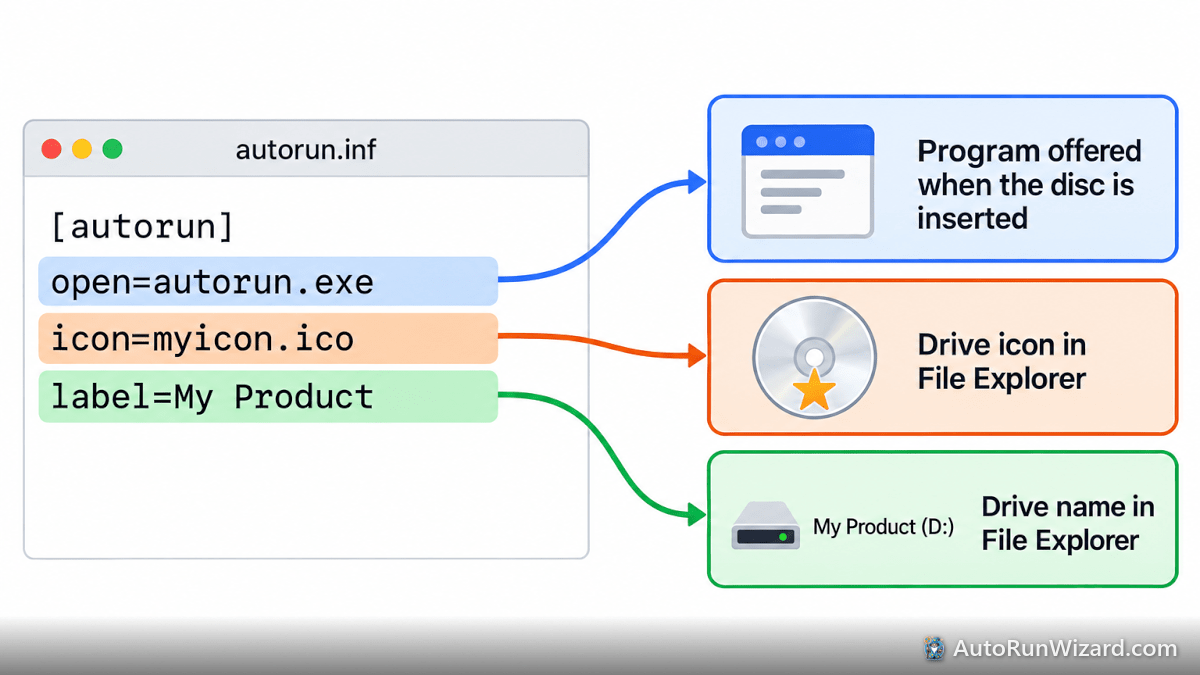
A typical autorun.inf written by AutoRun Wizard looks like this:
[autorun]
open=autorun.exe
icon=myicon.ico
label=My Product
| Line | What it does | Set in AutoRun Wizard |
|---|---|---|
[autorun] | The section header Windows looks for. Required. | Always written. |
open= | The program Windows offers to run when a CD or DVD is inserted. | Always autorun.exe, the AutoRun Wizard launcher, which then reads autorun.dat and runs your splash screen, sound, EULA and files. |
icon= | The icon File Explorer shows for the drive. Either an .ico file or an .exe plus an icon number (for example setup.exe,0). | The Icon option. |
label= | The drive name shown in File Explorer instead of the disc's volume label. | The Drive Label option. |
The three files work together
- autorun.inf - read by Windows. Points at autorun.exe.
- autorun.exe - the AutoRun Wizard launcher that runs on the end user's PC.
- autorun.dat - your project settings (files to launch, splash screen, sound, EULA). Only autorun.exe reads it.
All three must sit at the root of the CD or USB drive, next to each other. If they are inside a folder, Windows never finds autorun.inf.
What Windows 10 and 11 do with each line
| Line | CD or DVD | USB flash drive |
|---|---|---|
| open= | Offered in the AutoPlay prompt as "Run autorun.exe" | Ignored |
| icon= | Used | Used |
| label= | Used | Used |
See why a CD does not launch by itself on Windows 10 or 11 for the full story.
Should I edit autorun.inf by hand?
No. AutoRun Wizard rewrites autorun.inf every time you save your project, so hand edits are lost, and a typo can stop the drive icon or the AutoPlay prompt from working. Change the setting in AutoRun Wizard and save instead. It is fine to open the file in Notepad to check it while troubleshooting.