How do I give my USB drive or CD a custom icon and name?
A custom drive icon and name is the one autorun feature that still works on USB flash drives in Windows 10 and 11, so it is the best way to brand a USB drive you hand out. AutoRun Wizard sets both for you through autorun.inf.
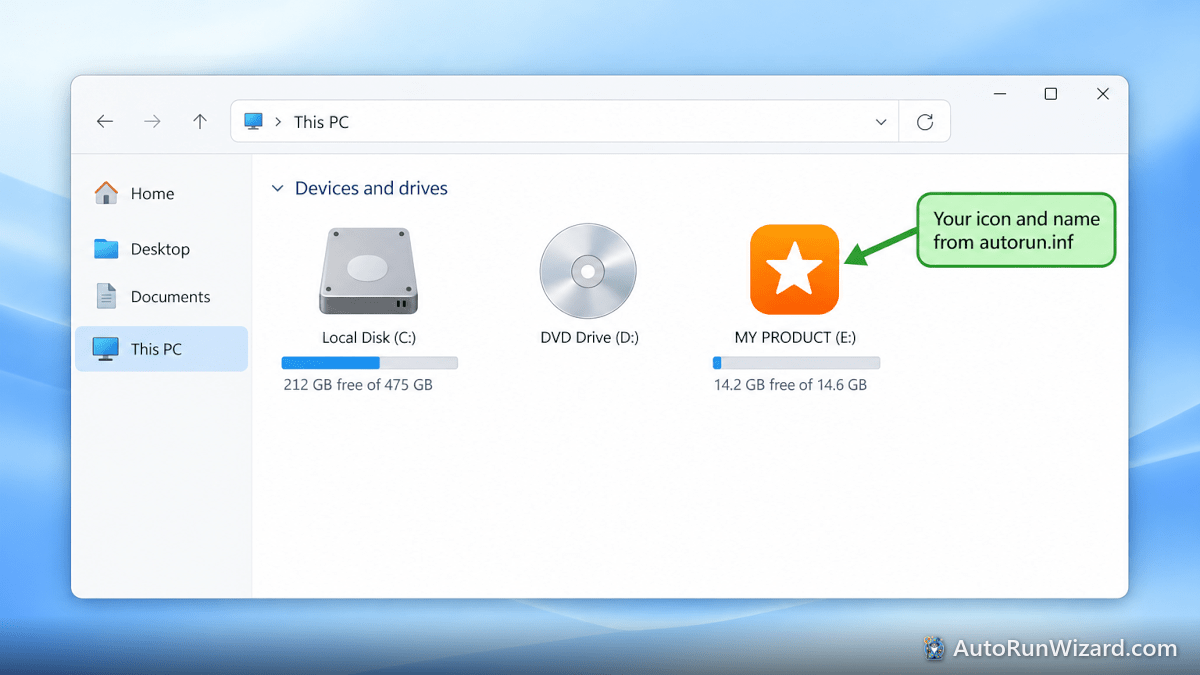
Set the icon
- Open your project in AutoRun Wizard and go to the Icon option.
- Choose one of the three choices:
- Load a custom .ico file - put the .ico file at the root of your Base Folder first.
- Use an icon from your .exe - if you launch a program, pick one of the icons inside it.
- Use the default AutoRun Wizard icon.
- Save the project. AutoRun Wizard writes the
icon=line into autorun.inf.
For the sharpest result, use an .ico file that contains several sizes, including 256x256, 48x48, 32x32 and 16x16. Most icon editors and free online converters can build one from a PNG.
Set the name
Type the name in the Drive Label option and save. AutoRun Wizard writes the label= line. File Explorer shows this name instead of the volume label the drive was formatted or burned with. Keep it short; long labels are cut off in File Explorer.
Copy the files and check it
Copy everything in the Base Folder (including autorun.inf and the .ico file) to the root of the USB drive or disc. Then safely remove the drive and plug it back in, or eject and reinsert the disc, and open This PC in File Explorer.
The icon or name does not change
- Windows caches drive icons. Remove and reinsert the drive, or try a different USB port. As a last resort, restart the PC.
- The .ico file is in a folder. Keep it at the root, next to autorun.inf. Folders with spaces in the name are a common cause of a missing icon.
- Antivirus blocked autorun.inf. Some security tools delete or lock autorun.inf on USB drives. See antivirus and autorun files.
- The burning software still has the drive locked. Eject and reinsert the disc after burning.
More detail: My autorun icon is not showing up correctly.